Decision tree

What has changed?

Do you want to install MobileSCAN for the first time (because you haven't had MobileSCAN before)?

How do you reactivate MobileSCAN in the app if I have previously already used MobileSCAN?

If your app was transferred from your old device or reinstated from backup, you will have to delete it and reinstall from AppStore/Google Play.

To reactivate MobileSCAN in mobile app, you will need to verify yourself with a selfie and a personal ID document (ID card or passport). 

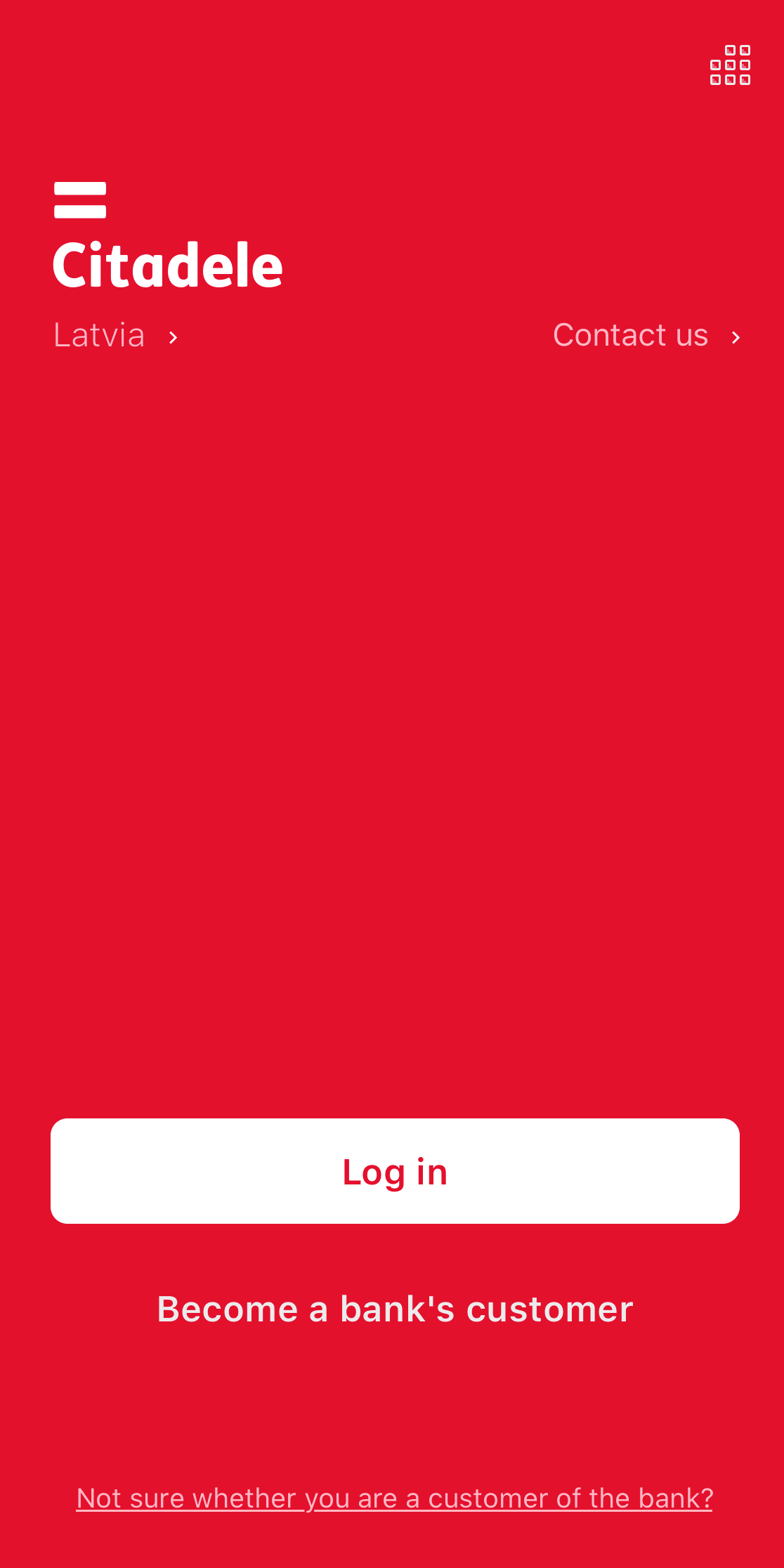
First open the Citadele app and select Log in.

screenshot of the welcome screen in Citadele mobile app

Enter your username and personal code or phone number, and press Continue. Keep in mind that this phone number must match the number listed in your contact information. 

If you can't remember your username, take a look here.
 

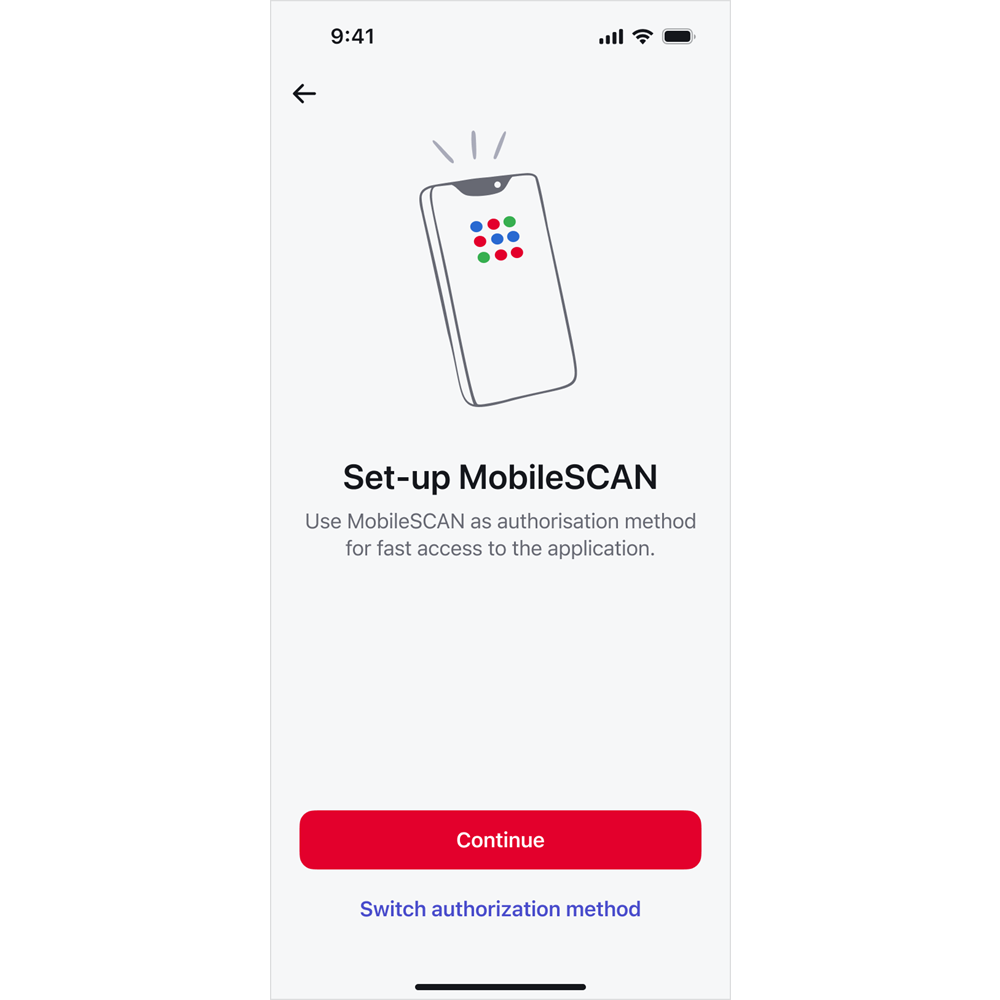
screenshot of the first MobileSCAN set-up screen in Citadele mobile app

You will be taken to the MobileSCAN activation screen. Click on Continue. 

Follow the steps in your phone and your MobileSCAN will be ready to use. 

Please note that this functionality is available for app version 45.6 (or newer) for iOS or 45.5 (or newer) for Android.

Are you satisfied with the answer?

Do you know your Online Banking username?

Do you know your Online Banking password?

To solve this issue, please contact us

You have come across a non-standard situation which cannot be resolved with the interactive assistant, so please contact us by calling +371 6701 0000.
During the call, we will verify that it is you who is calling, and that you are the account owner. By looking at the information in the bank’s systems, we can give you a more detailed answer on what to do.

Are you satisfied with the answer?